Let’s get Hyper-V installed and a bridged network switch defined. I want all virtual machines to be available to the rest of the client systems on my home network. Keep it simple.
Browse to the Control Panel -> Programs -> Programs and Features or appwiz.cpl.
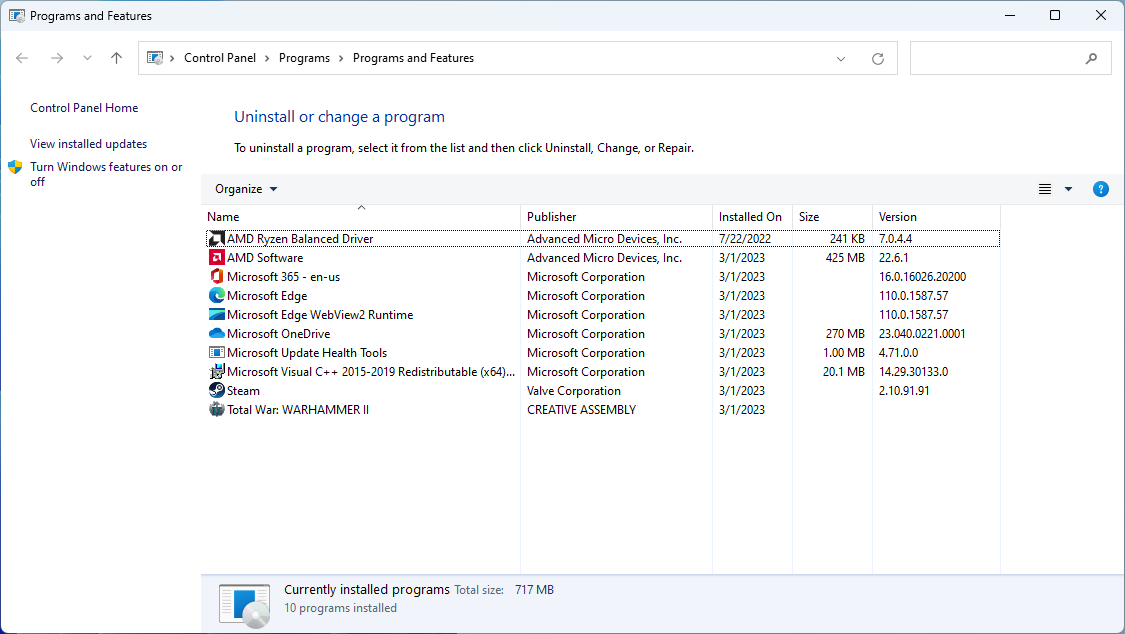
Check Hyper-V.

Start Hyper-V. Click on the host under Hyper-V Manager.
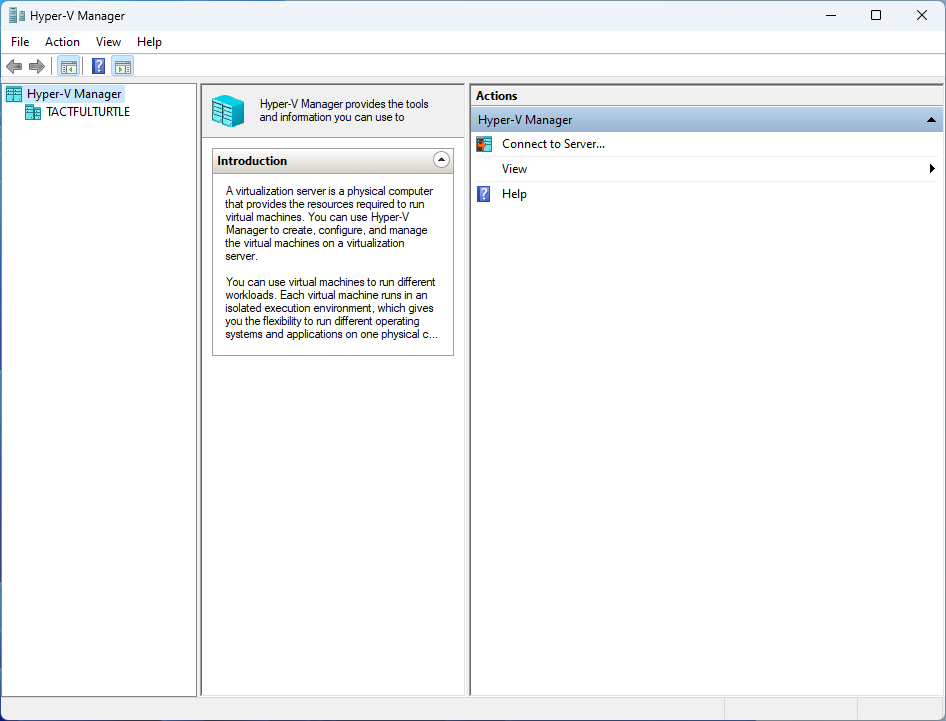
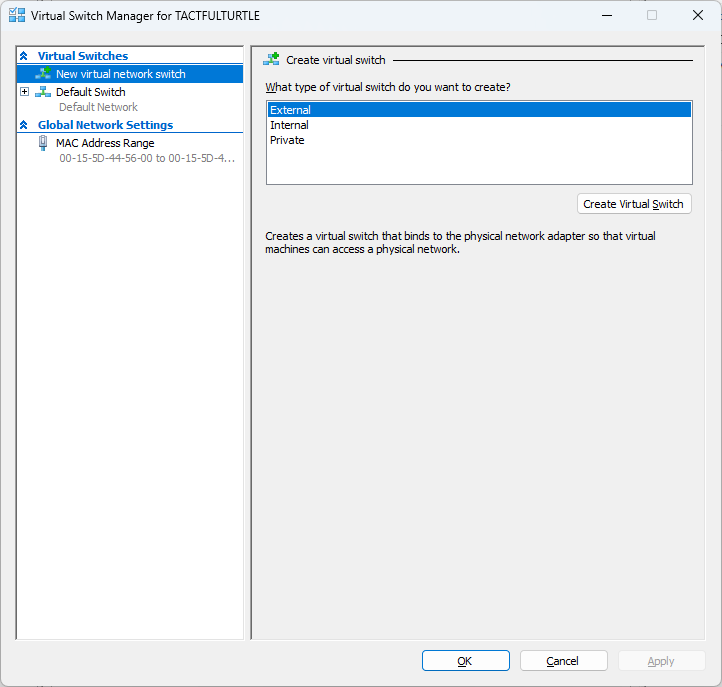
Click on your computer’s host, in my case TactfulTurtle and create a new External Virtual Switch.
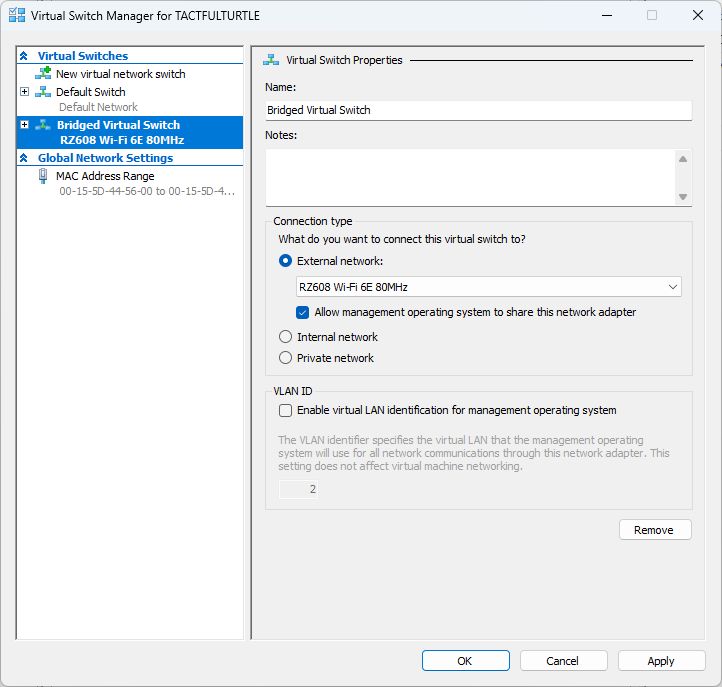
Changed the default name to Bridged Virtual Switch and the external network to the wireless network interface.
Ok, the basics are done for now. Next time we get a VM up and running.
 Wireless Hobo
Windows 11 Pro for Hyper-V host and Windows Server for guest? I’d say it should be the other way around. Maybe Windows Server 2022 for host and Windows Server Essentials for guest.
LikeLike
Nope. In this case I have a workstation that is multipurpose for me, but at the time I used it for a workstation and testing a myriad of hybrid scenarios.
LikeLike
Maybe not Windows Server Essentials for guest. In Windows Server 2022 onwards, Windows Server Essentials is not a separate SKU, just the Standard edition with a different license.
Windows Server 2022 Standard as a host on a PowerEdge or ThinkSystem server and Windows 10 or 11 Pro as a guest?
LikeLike